
Follow a request you sent
See where your request is and reply to the team, with or without an account.
For everyone.
Open your request
Open the link in your email
The email we sent when you made the request has a private link. Open it to see your request on My requests: where it is, in one sentence, and every message between you and the team.
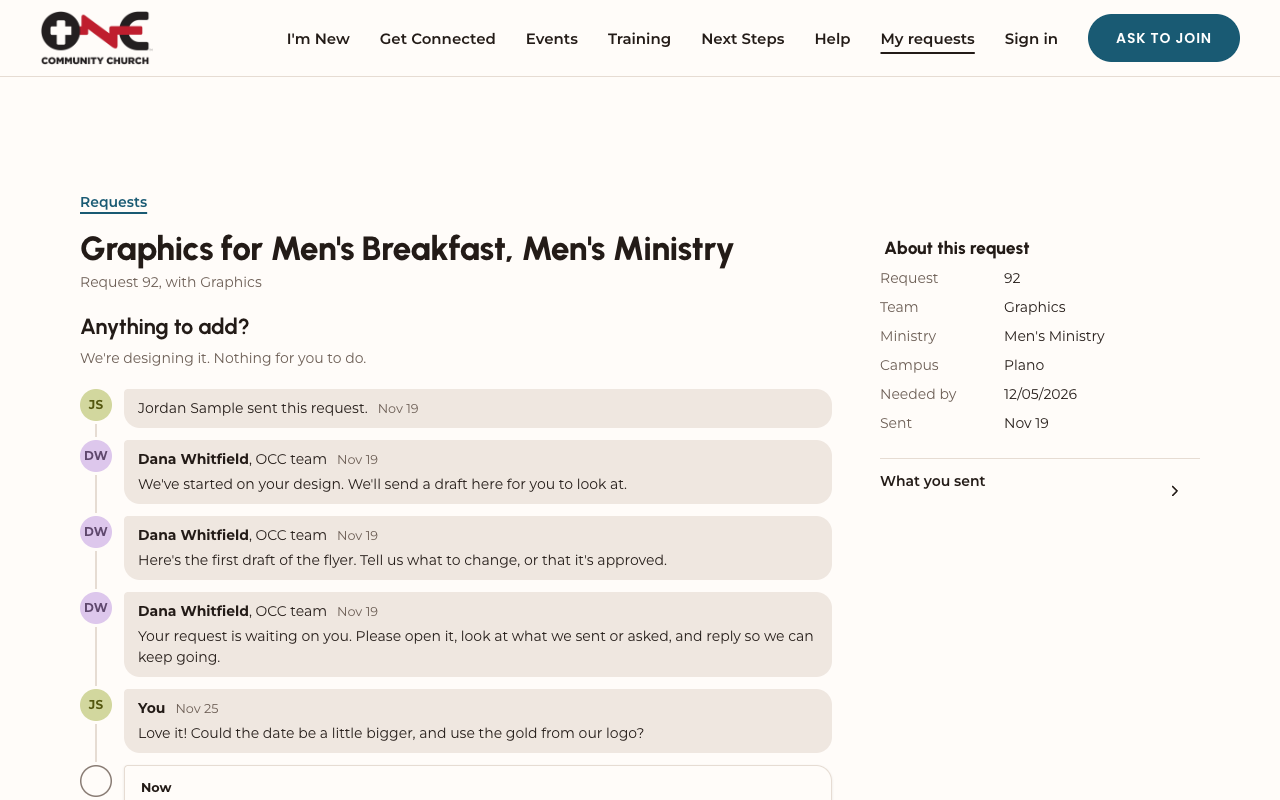
A request on My requests. The screens here come from our test site, and everyone in them is made up. Watch for updates
Each time the team moves your request along, you get a short email, and the same link works in every one.
Reply to the team
Write in the reply box at the bottom of the request and send it. If the team asked you something, your reply moves the request along. Some teams have their own email address, and for those you can also simply reply to the email.
See all of your requests
If you’re signed in to the community, My requests lists everything you’ve asked for. If you don’t have an account, you can still see them all:
Open My requests
Press My requests at the top of the site.
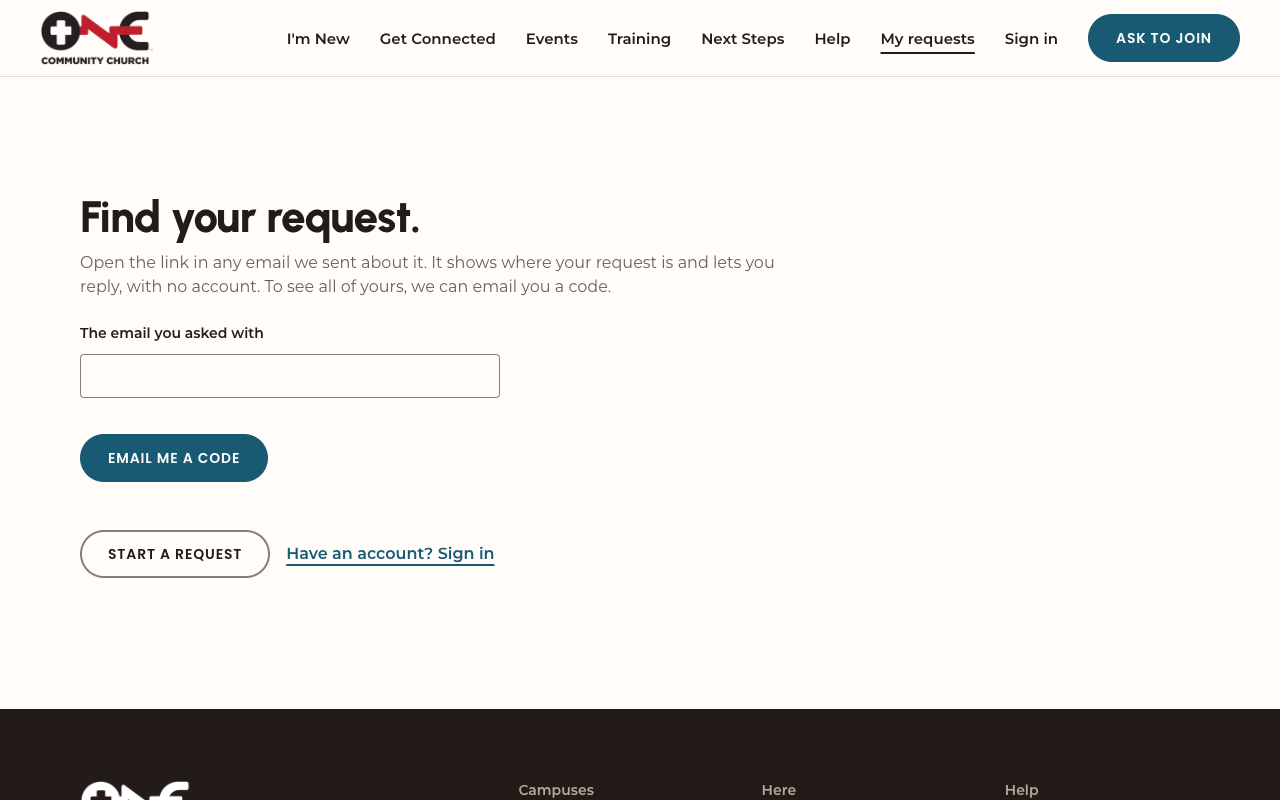
My requests, signed out. Ask for a code
Type the email you used when you asked, and press Email me a code.
Enter the code
Type the 6-digit code from the email. My requests then shows all of your requests on that device.
If it was closed too soon
Open the request and reply. Your reply opens it again, and the team picks it back up.