Find a group and ask to join
Search by campus, day and kind of group, or answer a few questions and see the groups that fit.
For everyone.
-
Search and filter
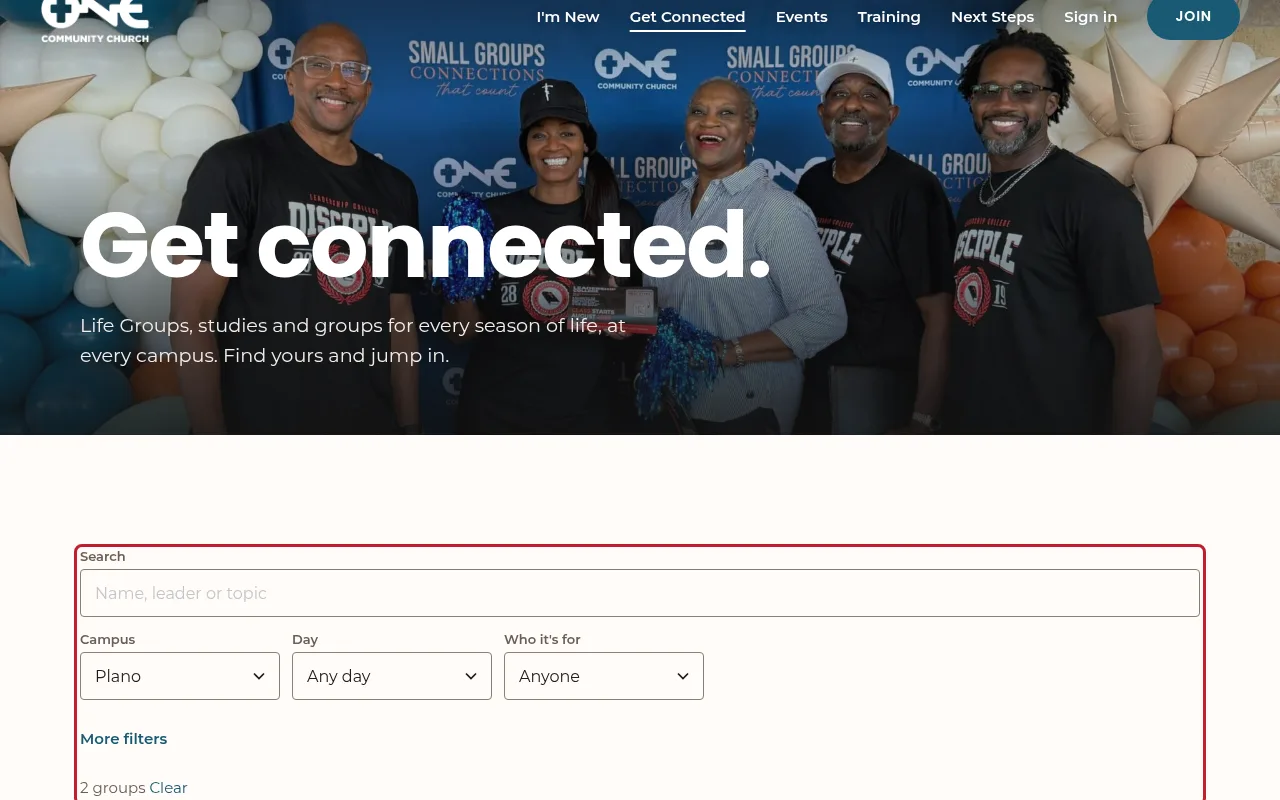
Open Get Connected at the top of the site. Search for a group’s name, its leaders or what it’s about, or choose a campus, a day and who it’s for. More filters has ages, time of day, how it meets and kid friendly. The list changes as you choose, and the page’s address keeps your choices, so you can send someone the list.
-
Not sure which? Answer a few questions
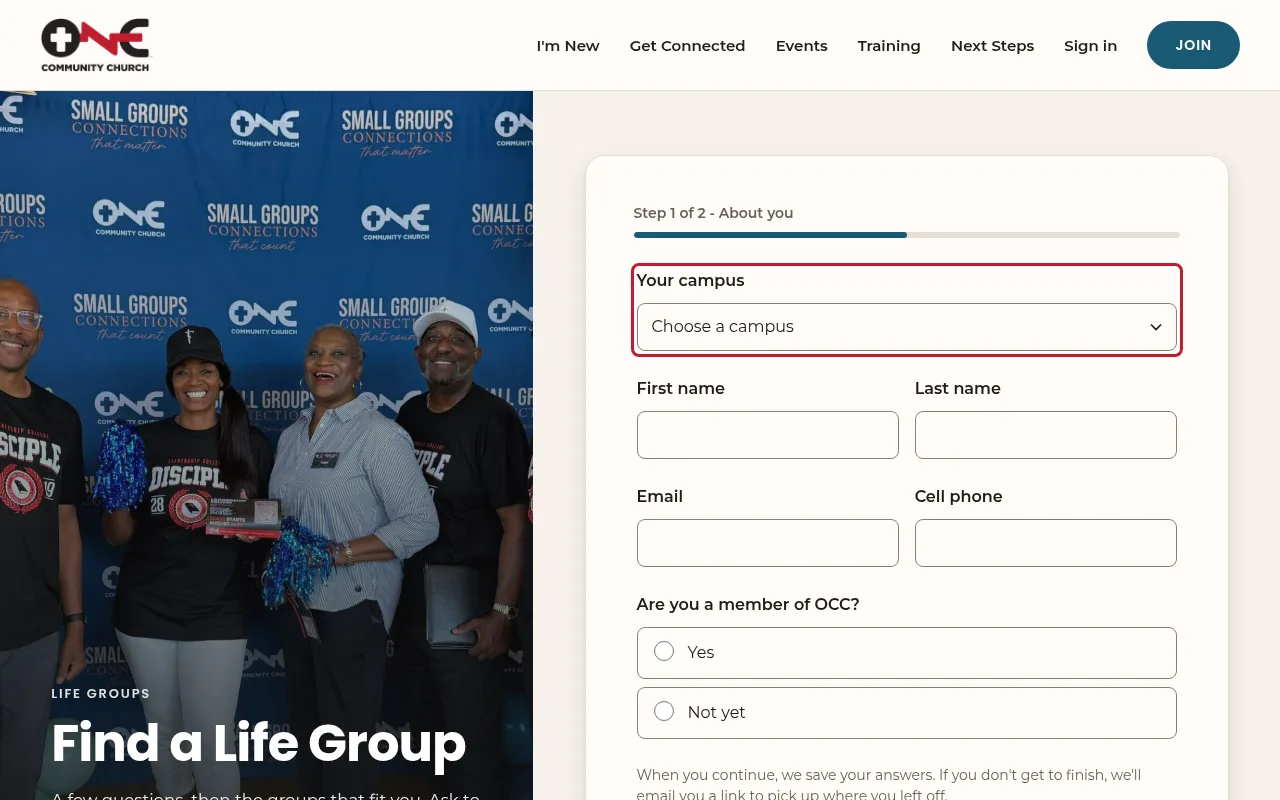
Open Find a Life Group (Get Connected links to it). Tell us your campus and how to reach you, then who the group is for, the days and time that work, in person or online, and whether you’d like it kid friendly. You don’t need an account.
-
The groups that fit
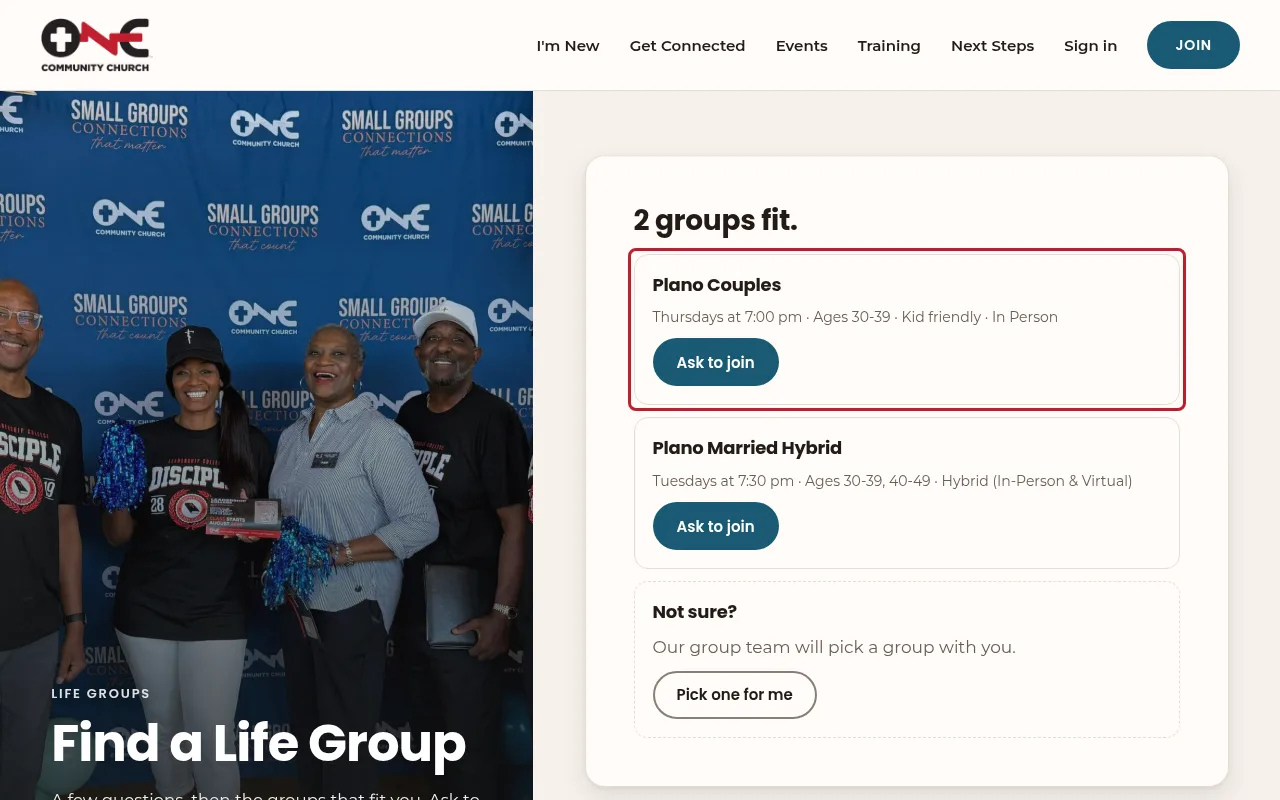
Next you see the groups that fit what you told us, or the closest ones if none fits everything. Press Ask to join on one, or Pick one for me and your campus’s group team will pick one with you.
-
Groups, once you’re signed in
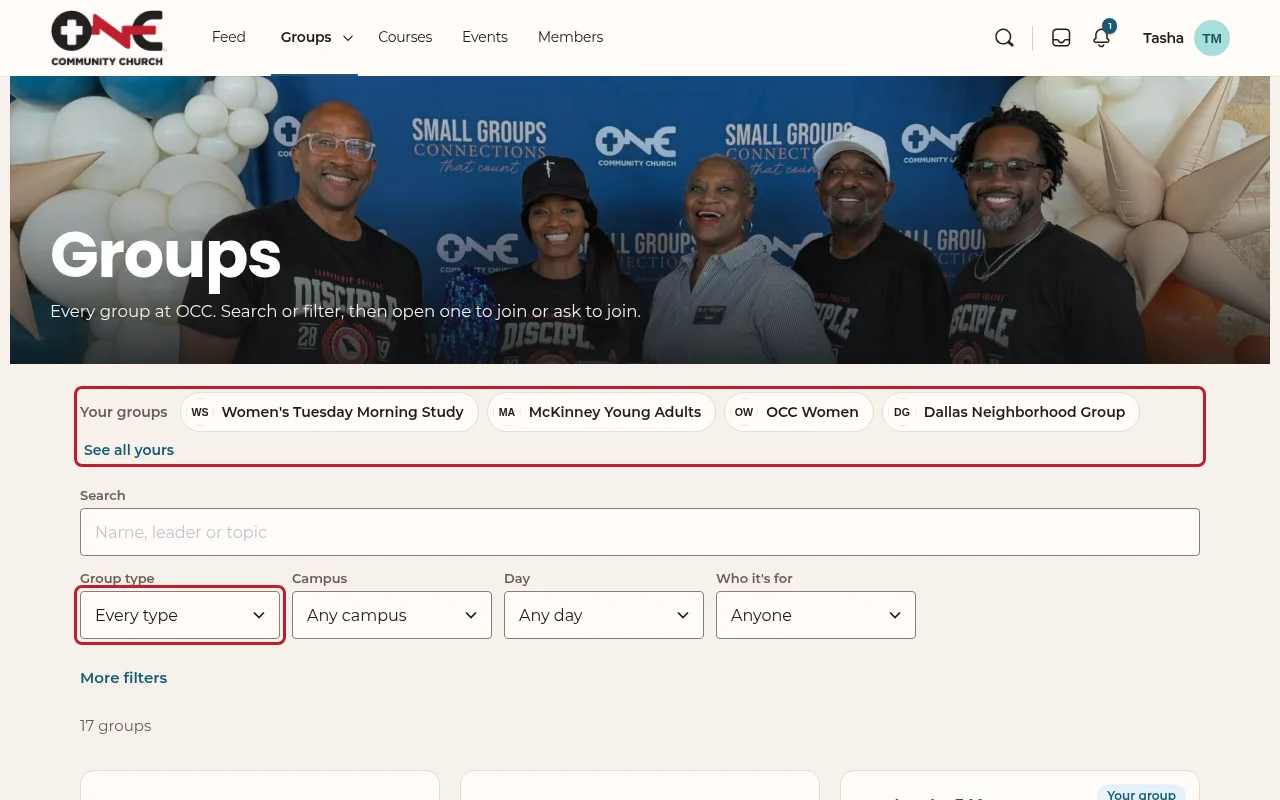
Signed in, Groups at the top opens the same finder inside the community. Your own groups are across the top, and each of yours says Your group. The Groups menu lists each kind of group, like Life Groups or Ministries; each opens this page with that kind chosen in Group type.
-
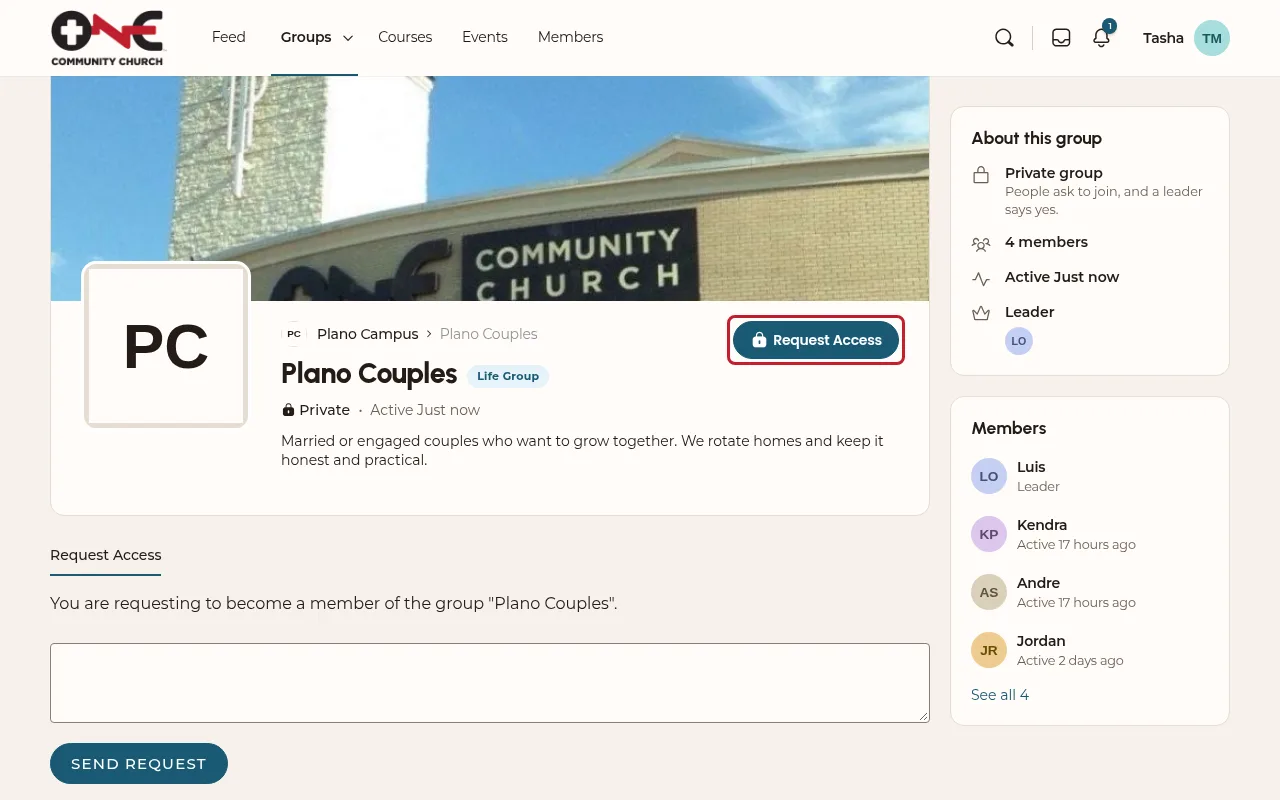
Ask to join
Open the group and press Request Access (or Join, for a group anyone can join). Most groups are private, so the leaders say yes first, usually within a few days. You’ll get a notification when they do, and the group shows up in your News Feed. If it isn’t the right group, your campus’s group team finds you another; nobody is told no. A group that’s full says Full for now: find another group.