
Put your group on Get Connected
Set your group's campus, day and time so people can find it.
For group leaders.
Set where and when you meet
Open your group’s settings
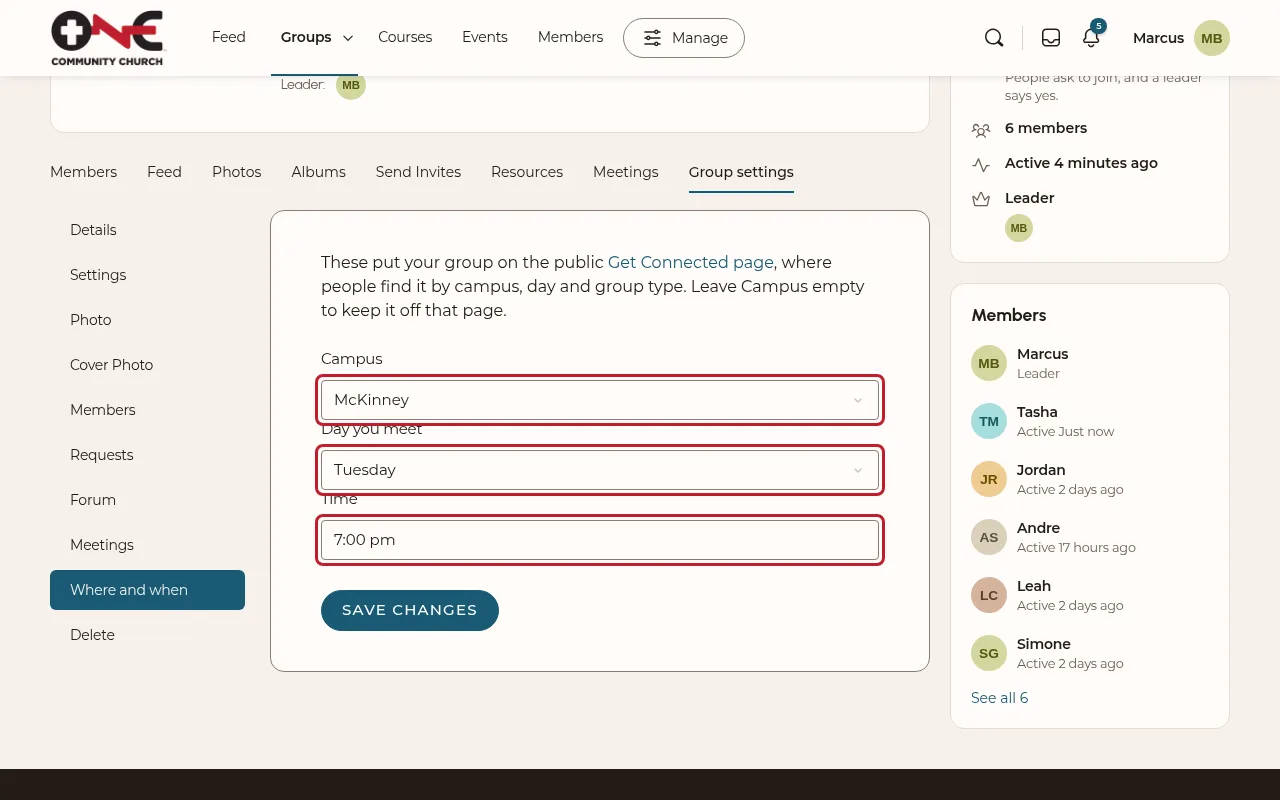
Open your group, then Group settings, then Where and when.
The screens here come from our test site, and everyone in them is made up. Choose your campus and day
Choose the campus your group belongs to and the day it meets.
Type the time
Type the time your group meets.
Save it
Press Save changes. Your group now shows on Get Connected.
See it the way others do
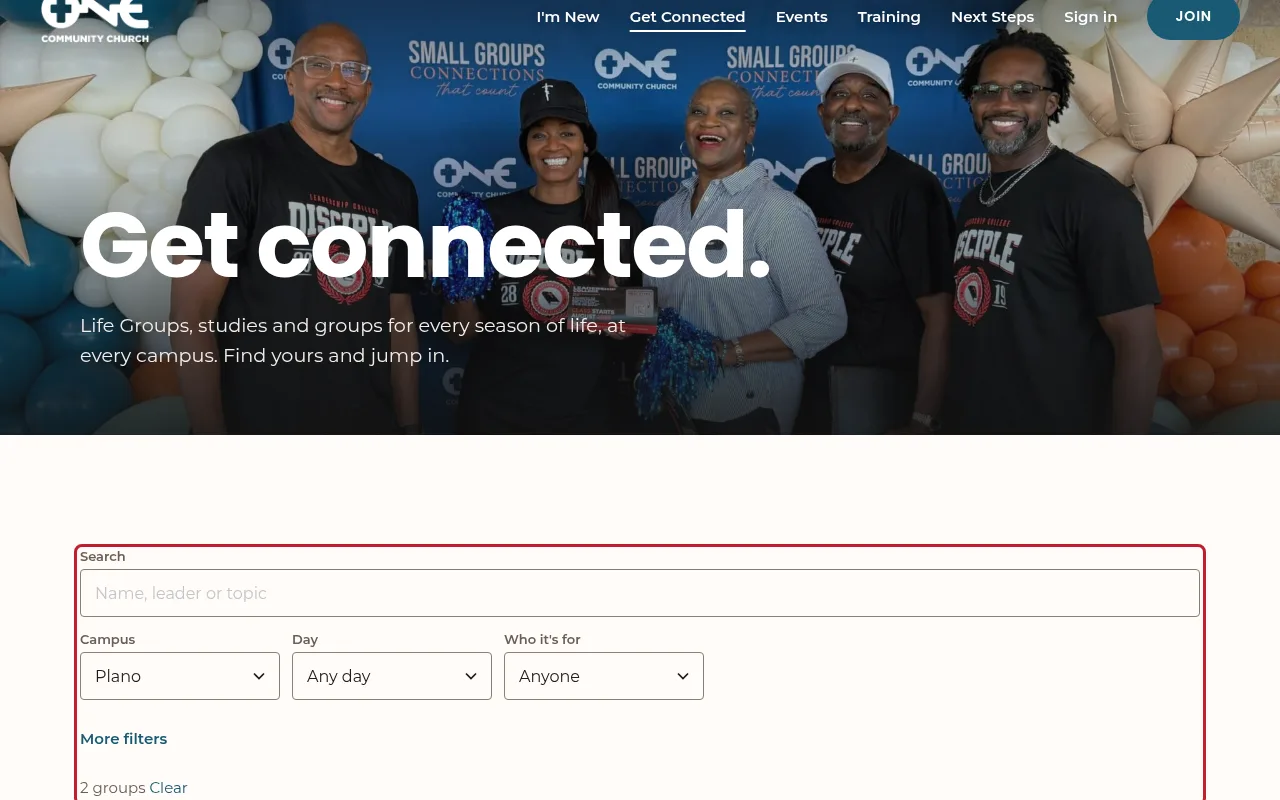
Open Get Connected at the top of the site, and choose your campus and day, or search for your group’s name. That’s how people looking for a group will find yours.
Good to know
Change these whenever your group moves to a new day or time. A group that comes from Planning Center takes its campus, day and time from Planning Center, so change them there instead.
Was this helpful?