
Use the community on your phone
Find your way around on a phone, and keep the community one tap away.
For members.
Open it on your phone
Go to the site in your phone’s browser
Open connect.visitonecc.com in Safari, Chrome or whichever browser your phone uses. There’s no app to download.
Sign in
Press Menu, then Sign in, and sign in the way you always do. Tick Remember Me so you stay signed in on that phone.
Find your way around
The bar at the bottom of the screen has Feed, Groups, Courses, Messages and Me. The menu button at the top left has everything else. On your News Feed, swipe the cards at the top to see what’s coming up.
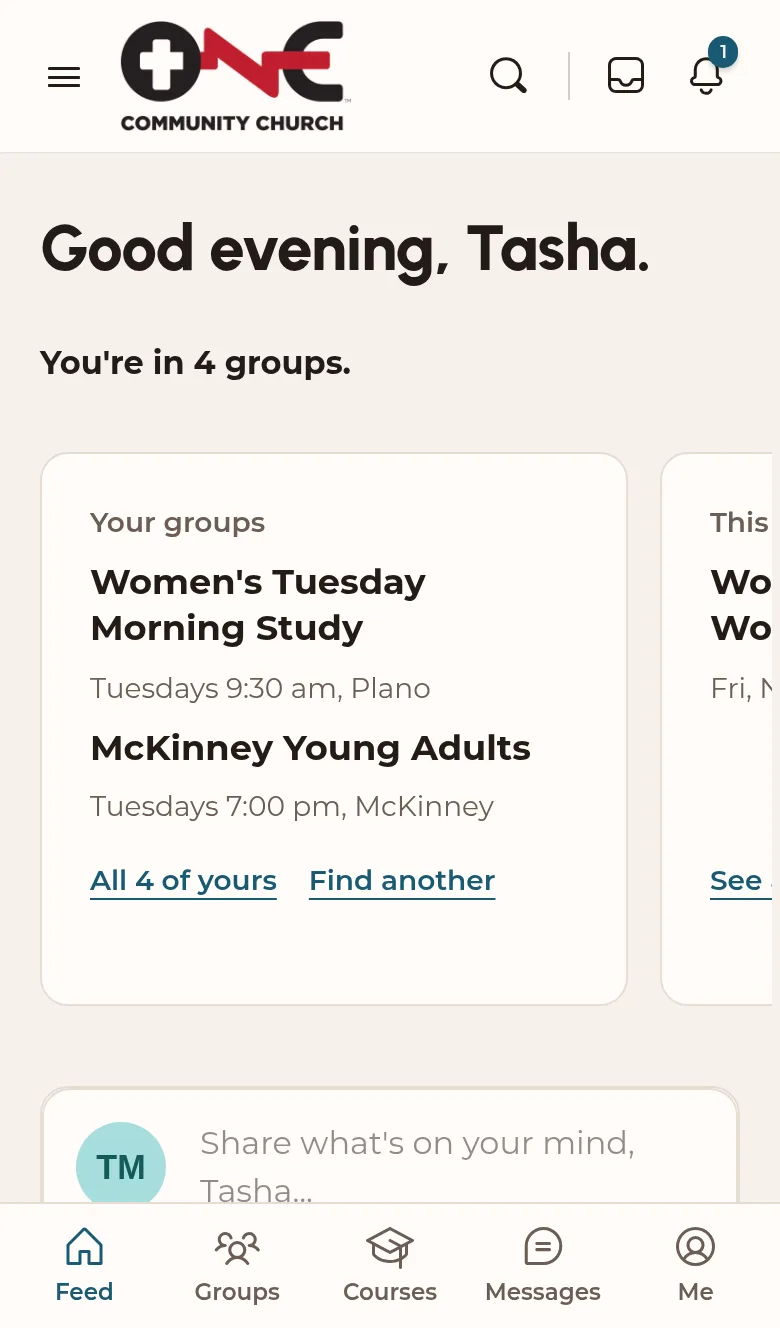
The News Feed on a phone. The screens here come from our test site, and everyone in them is made up.
Keep it one tap away
Add the community to your home screen, and it opens like an app.
On an iPhone
In Safari, press the Share button at the bottom of the screen, then Add to Home Screen, then Add.
On an Android phone
In Chrome, press the three dots at the top right, then Add to Home screen or Install app, then Add.
Good to know
Everything you can do on a computer works on your phone too: posting in your groups, messaging, joining a meeting online and taking a course.