Run an event on the OCC community
An event has its own group, its sessions, and a door people sign in at with their cell number. You run it from Manage, which opens over the community and closes back to where you were.
For event admins (the organizers of the event’s group), the Event team (its moderators, who work the door) and group admins (the moderators of a subgroup). What you see in Manage follows your part. The screens below come from a demo, King Maker Demo; every person in them is made up. Start with Getting started on the OCC community if you’re new to the site.
Open Manage
-
From the top of the site
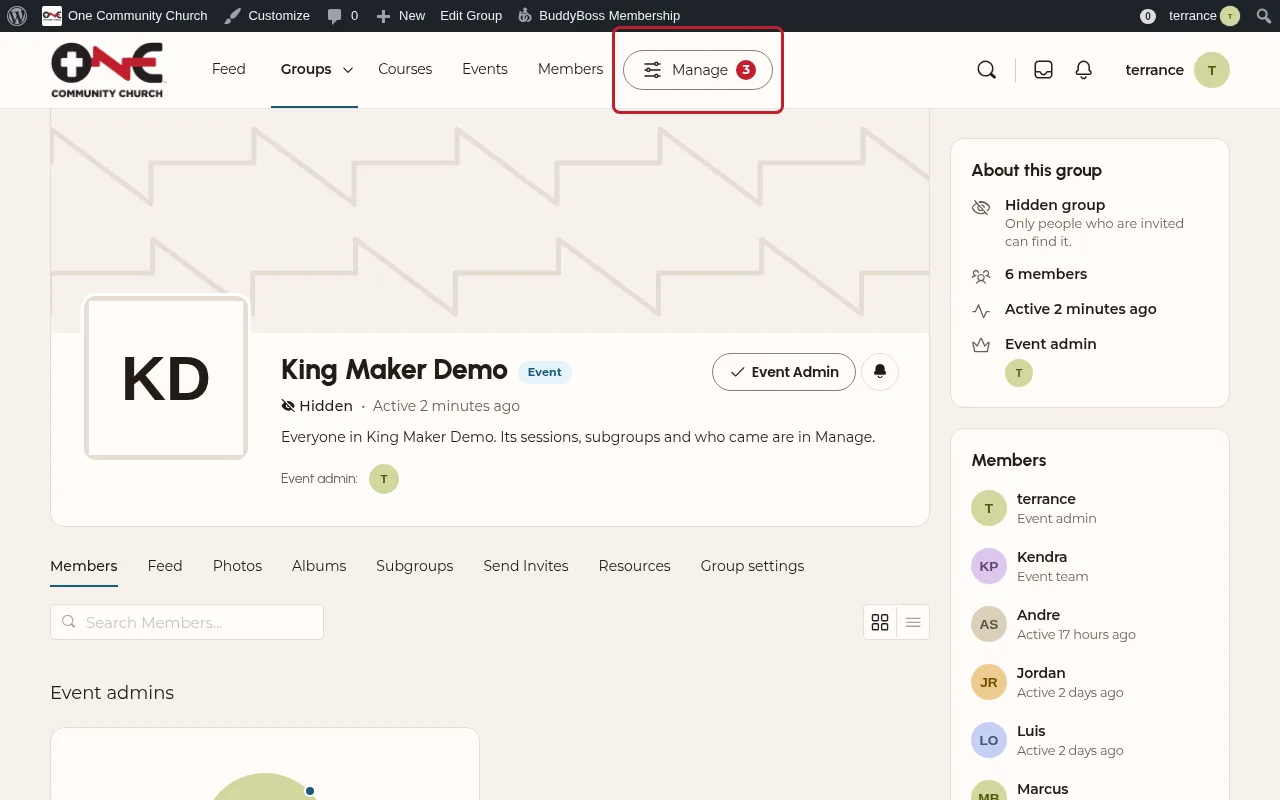
Anyone who runs something has Manage at the top of the site (on a phone, at the top of the menu), with a count of people waiting on you. On an event’s group, Manage opens that event. The X at the top left closes it again.
-
Your event at a glance
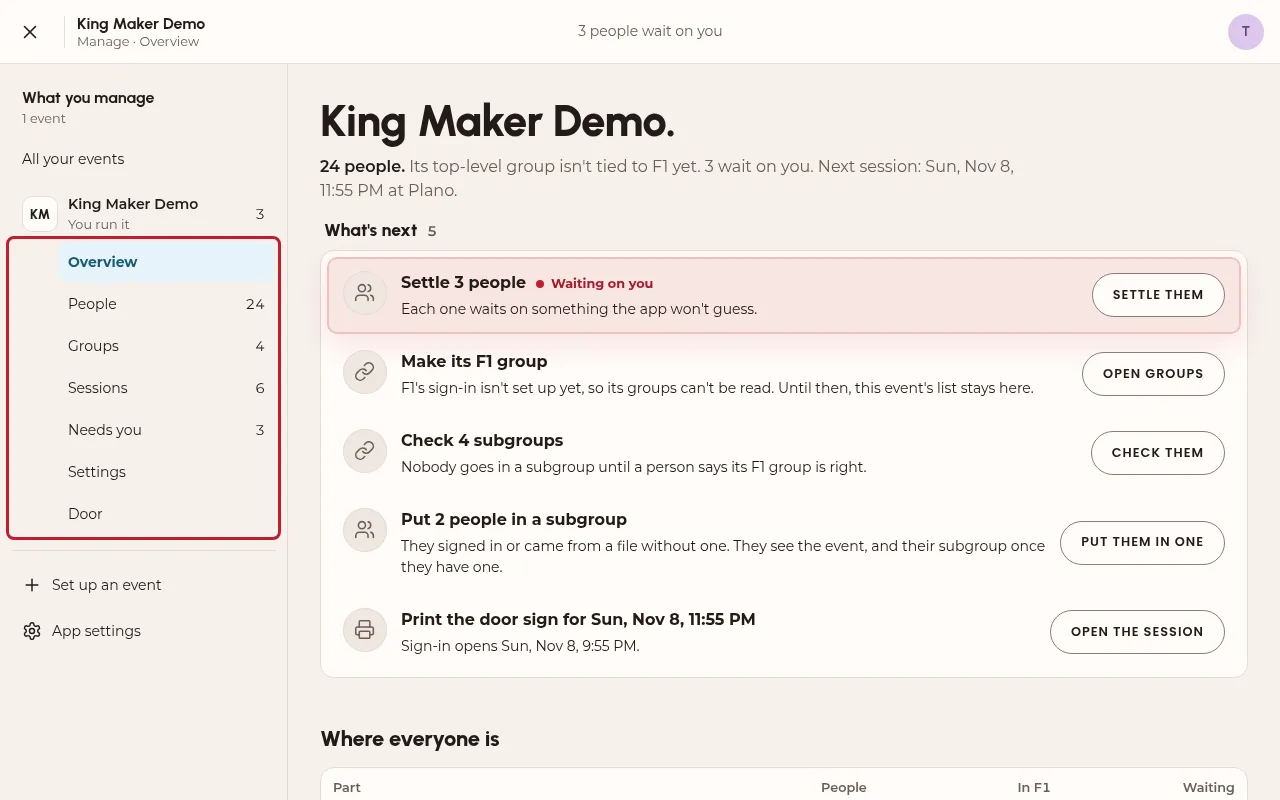
The outline on the left has everything you run. Overview says what’s next: the session coming up, people to place in a subgroup, and anyone in Needs you (someone the app couldn’t place on its own: a new person, a missing last name, two possible matches).
People, groups and sessions
-
People
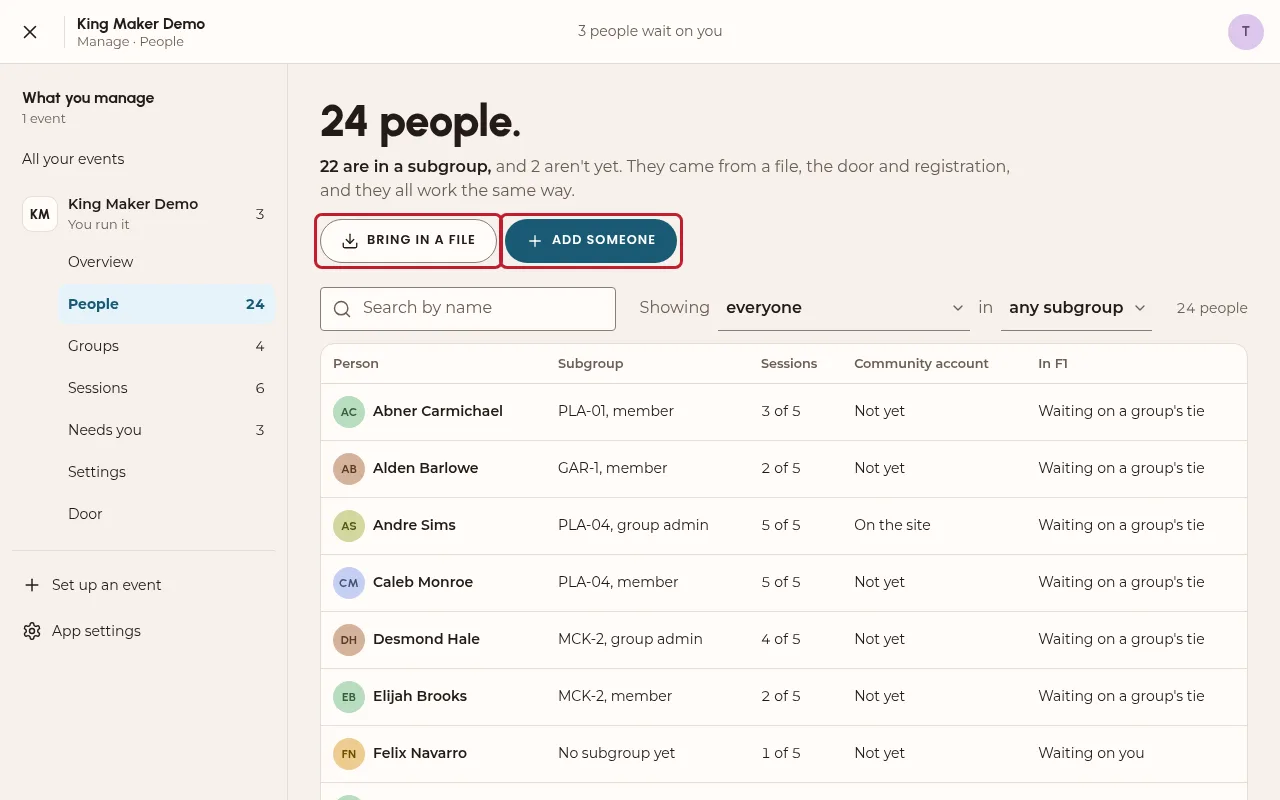
Everyone in the event, with their subgroup and how many sessions they came to. Bring in a file takes a spreadsheet of names and cell numbers; Add someone takes one person. Open someone to put them in a subgroup. Leaders and Co-Leaders become their subgroup’s group admins once they have a community account.
-
Sessions and the door sign
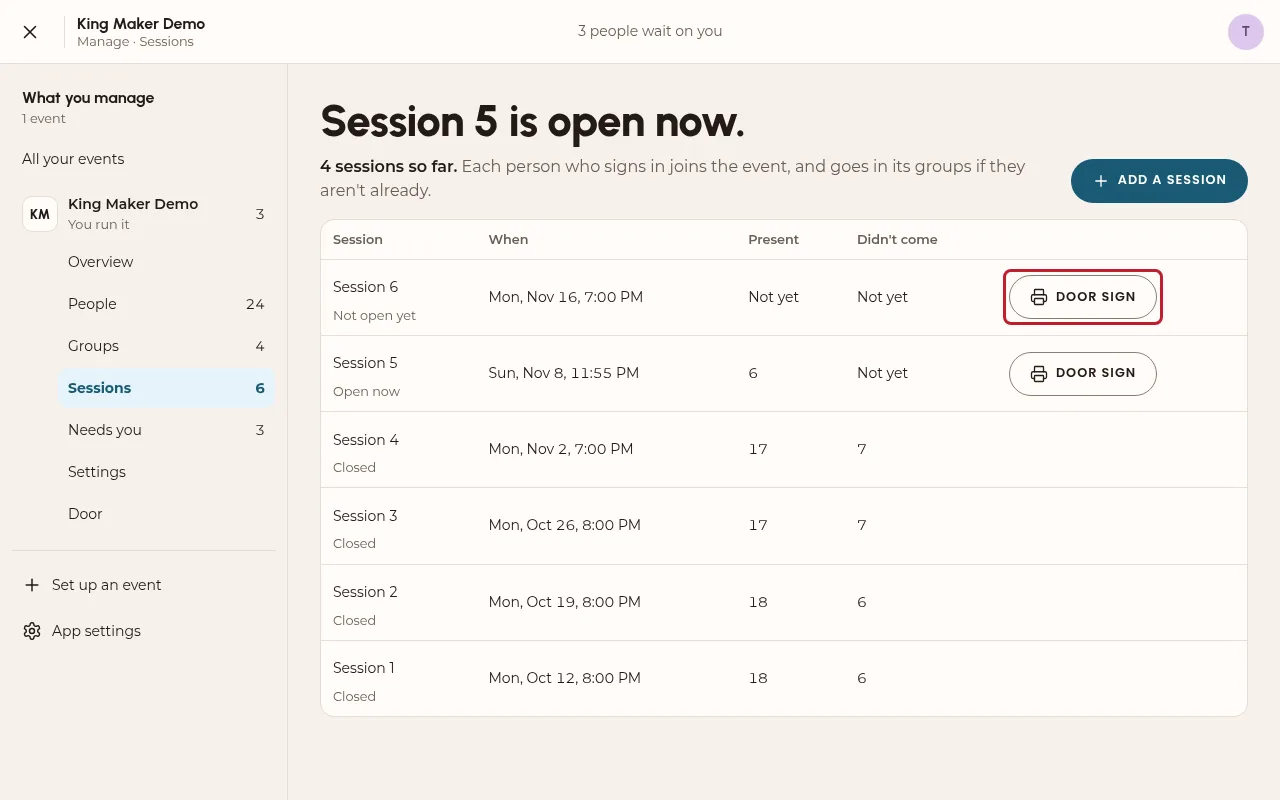
Each session has when the door opens and closes. Its door sign has the QR code people scan and the link to the door; print it and tape it where people come in. Only open sessions take sign-ins.
Work the door
-
For the Event team
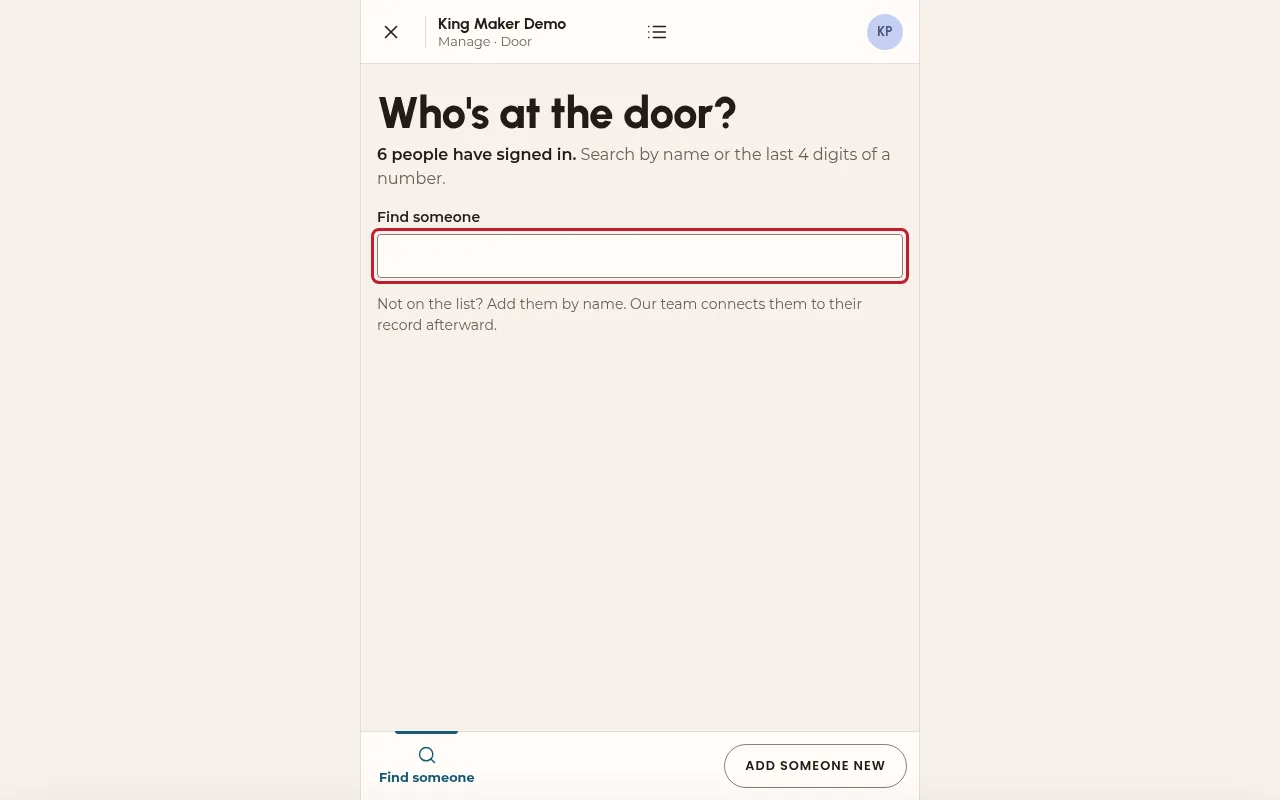
Open Manage, then Door. In Find someone, type a name or the last 4 digits of their number, then sign them in. Not on the list? Add someone new by name; the event’s admins connect them to their record afterward. Most people sign themselves in by scanning the sign; you’re there for whoever needs a hand.
Your group: who came
-
For a group admin
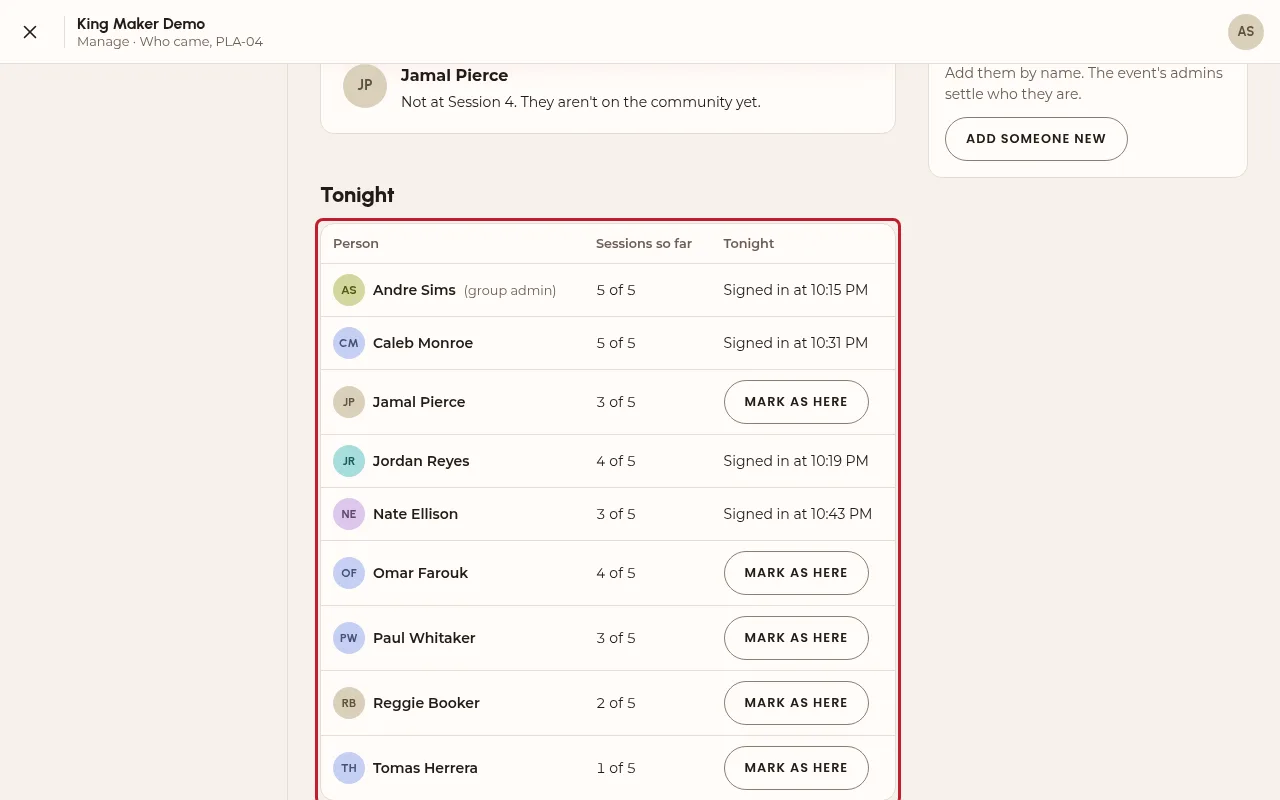
If you lead one of the event’s subgroups, Manage opens on Who came: your group’s names, how many sessions each came to, and who to check on after missing one. While a session is open, Mark as here signs someone in, and Add someone new adds whoever came with them. You never see anyone’s cell number.
At the door, for everyone
-
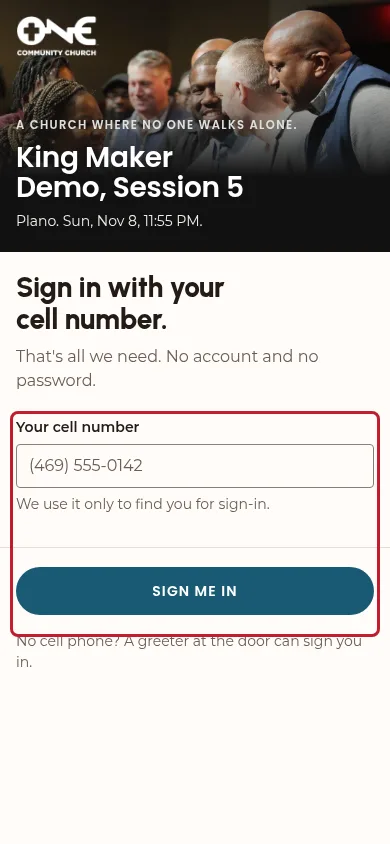
Sign in with your cell number
Scan the sign with your phone’s camera and type your cell number. That’s all. The next time, that phone remembers you.
-
Already on the community?
If you’re signed in to the community on that phone, the door knows you: one tap and you’re signed in. After signing in with your number, Email me a code signs you in to the community and opens the event’s group.