Getting started on the OCC community
The OCC community is one place for your groups, the people you meet at church, what’s on this week and training. Here’s how to get in and find your way around.
For everyone at OCC. The screens below come from a demo; every person in them is made up. Leading a group? Read Lead your group on the OCC community too.
The link
| Link | Use it to |
|---|---|
| The OCC communityhttps://connect.visitonecc.com | Find groups, events and training without signing in. Join or sign in for the community: your groups, the News Feed, meetings, messages and courses. |
Join
-
Create your account
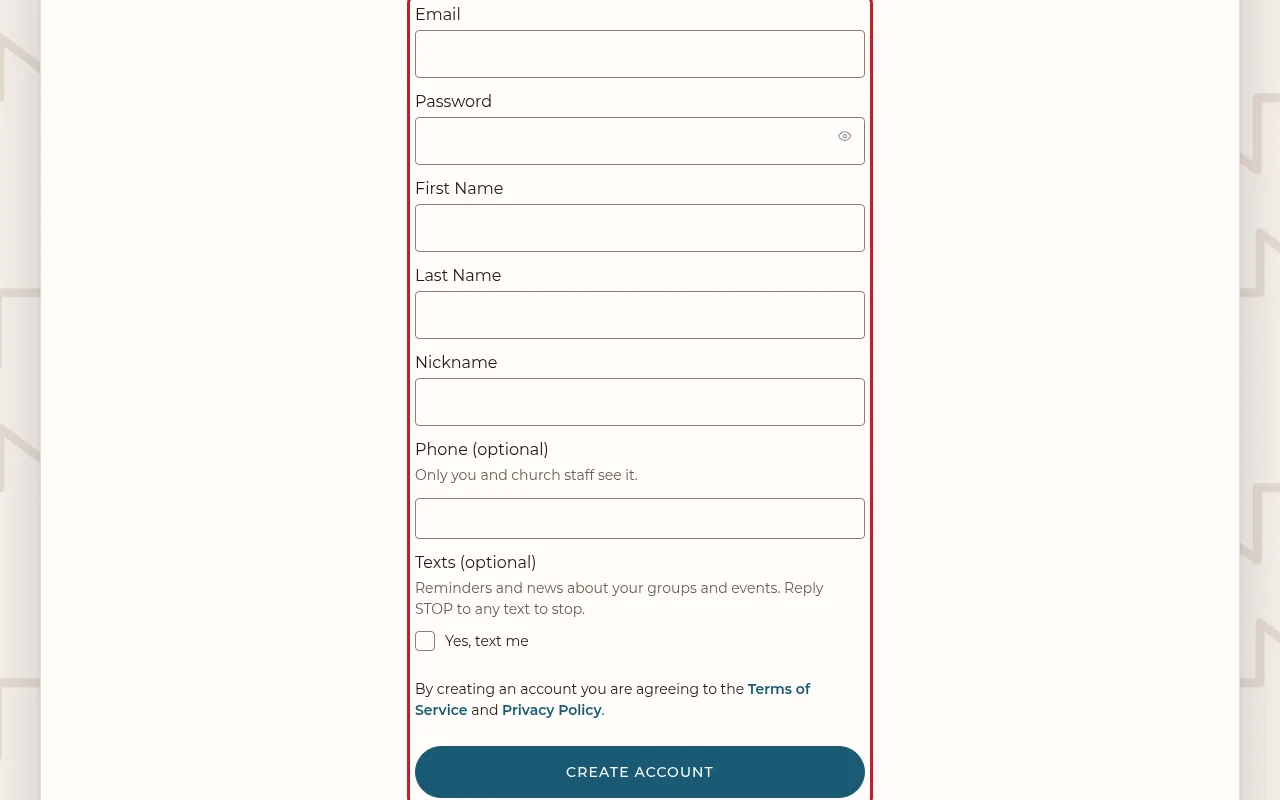
Press Join at the top of any page. Enter your email, a password, your first and last name and your cell number. Under Texts, tick Yes, text me only if you’d like text messages about your groups and events. Only you and church staff see your number. Press Create account, then open the email we send and confirm your address.
-
Start on your News Feed
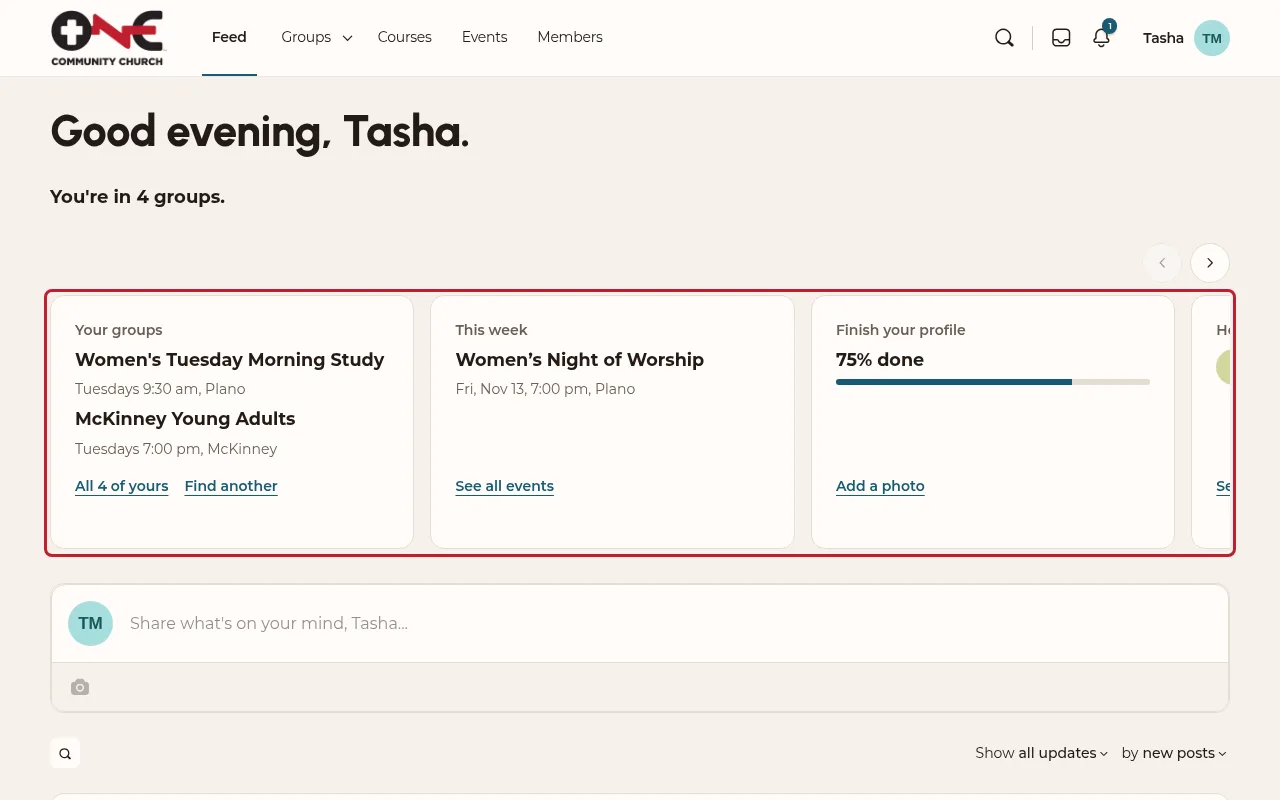
When you sign in, you land on the News Feed. Across the top is a row of cards just for you: your groups, what’s on this week, the course you started, what’s left on your profile and who’s been on lately. A card only shows when it has something for you. Use the arrows, or swipe on a phone, to see them all. Under the cards are posts from your groups and the people you’re connected with.
Find a group
-
Search and filter
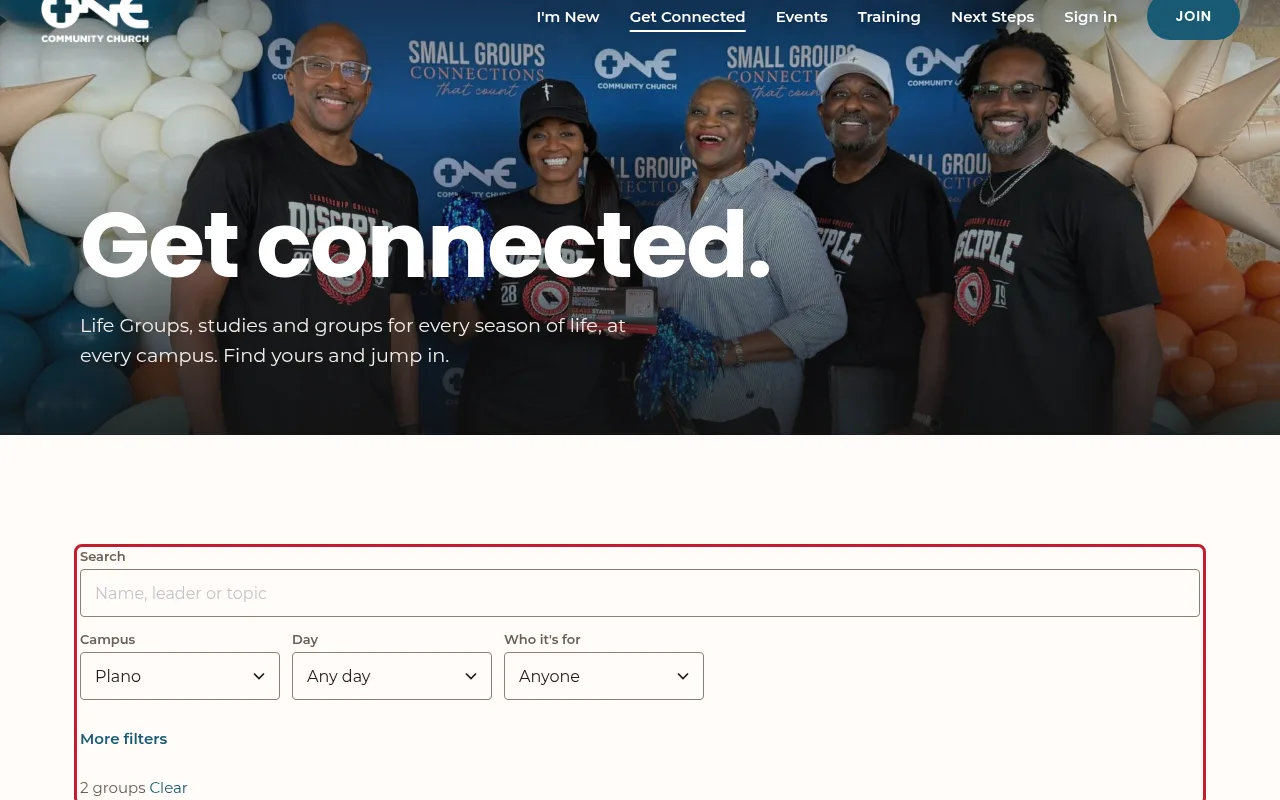
Open Get Connected at the top of the site. Search for a group’s name, its leaders or what it’s about, or choose a campus, a day and who it’s for. More filters has ages, time of day, how it meets and kid friendly. The list changes as you choose, and the page’s address keeps your choices, so you can send someone the list.
-
Not sure which? Answer a few questions
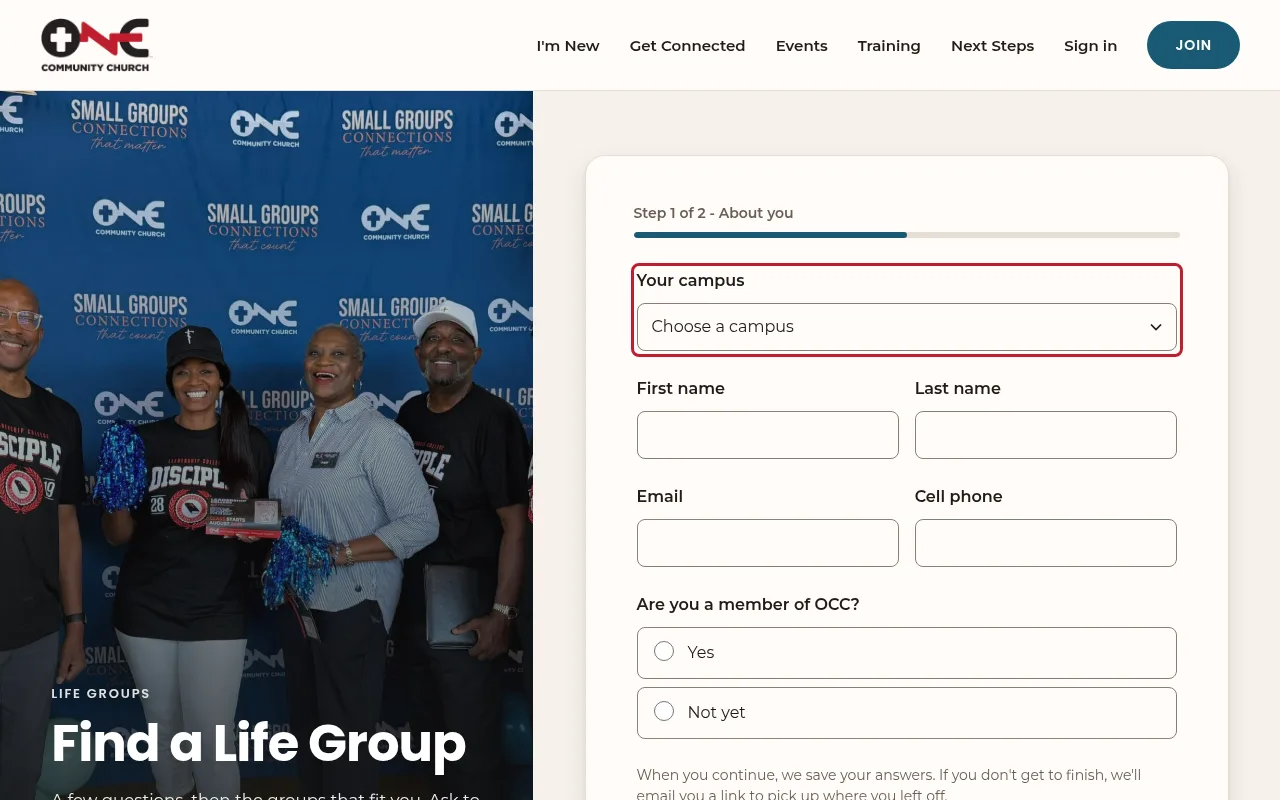
Open Find a Life Group (Get Connected links to it). Tell us your campus and how to reach you, then who the group is for, the days and time that work, in person or online, and whether you’d like it kid friendly. You don’t need an account.
-
The groups that fit
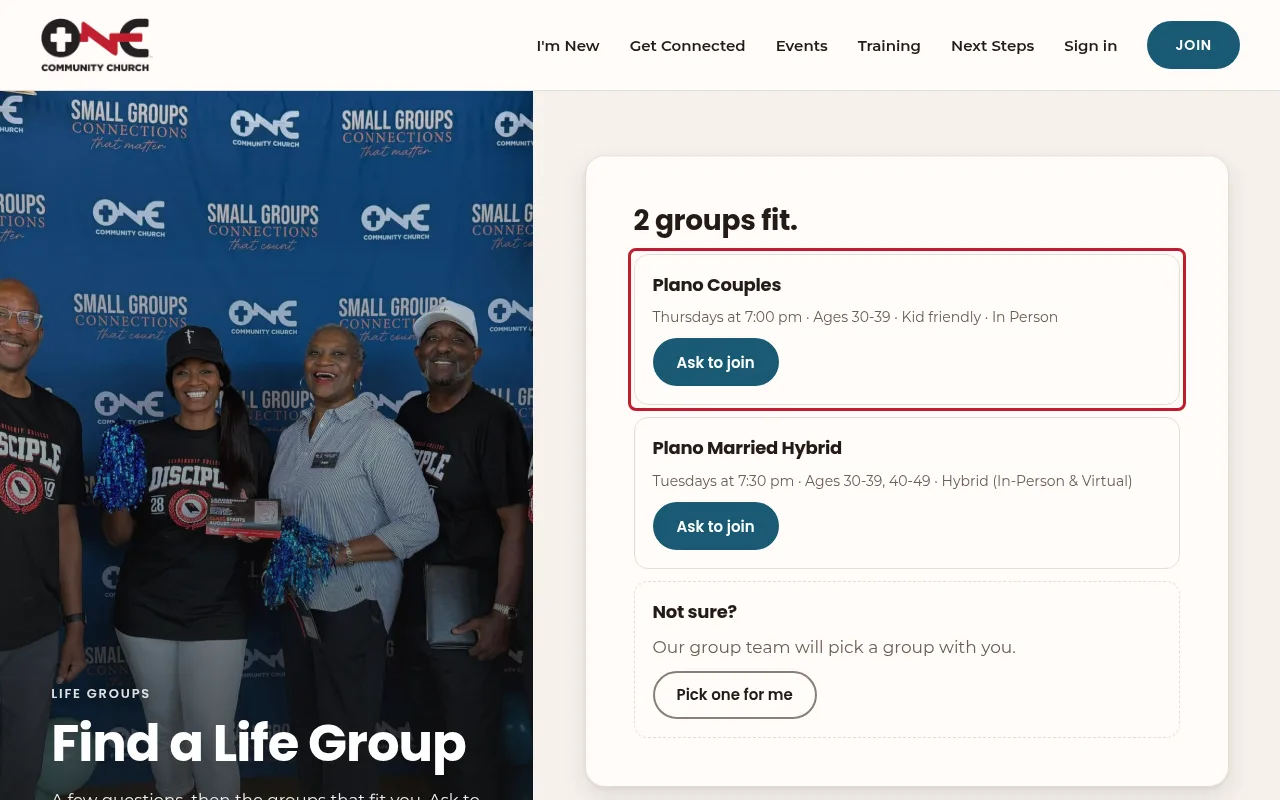
Next you see the groups that fit what you told us, or the closest ones if none fits everything. Press Ask to join on one, or Pick one for me and your campus’s group team will pick one with you.
-
Groups, once you’re signed in
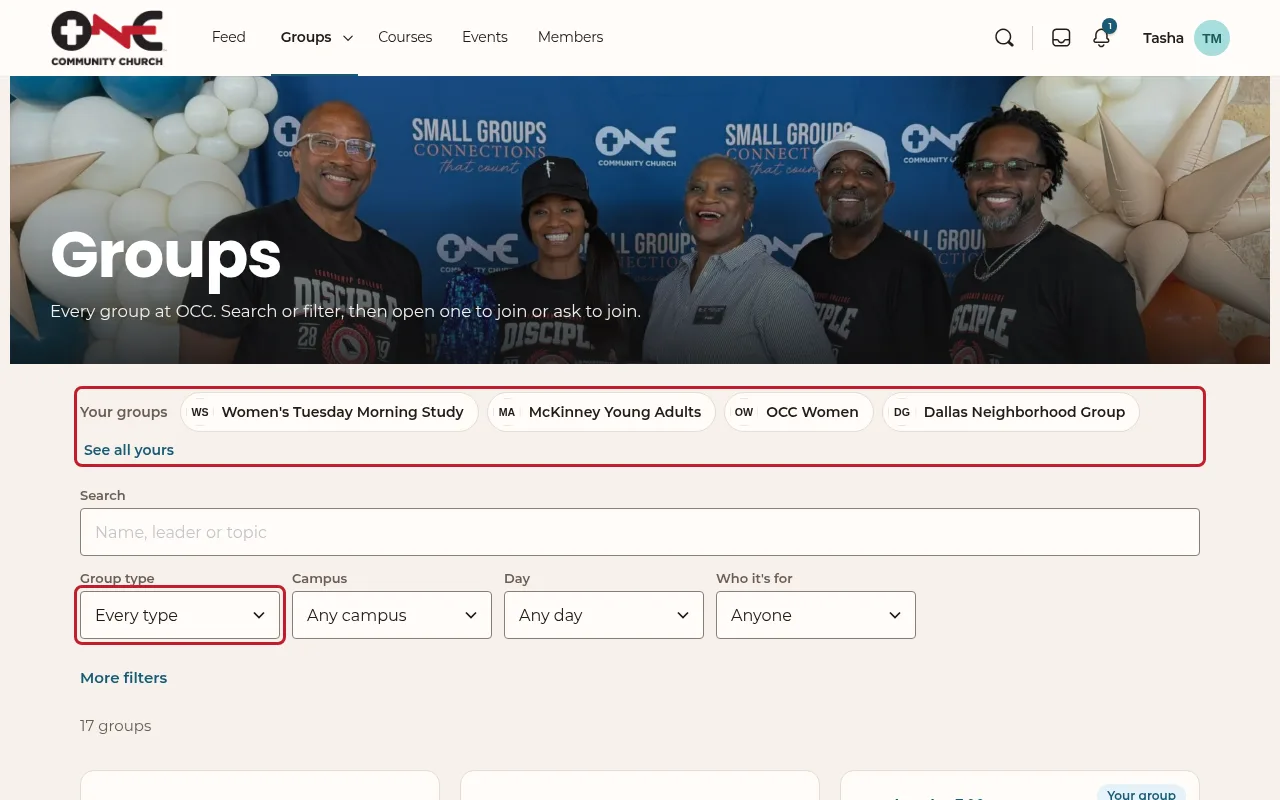
Signed in, Groups at the top opens the same finder inside the community. Your own groups are across the top, and each of yours says Your group. The Groups menu lists each kind of group, like Life Groups or Ministries; each opens this page with that kind chosen in Group type.
-
Ask to join
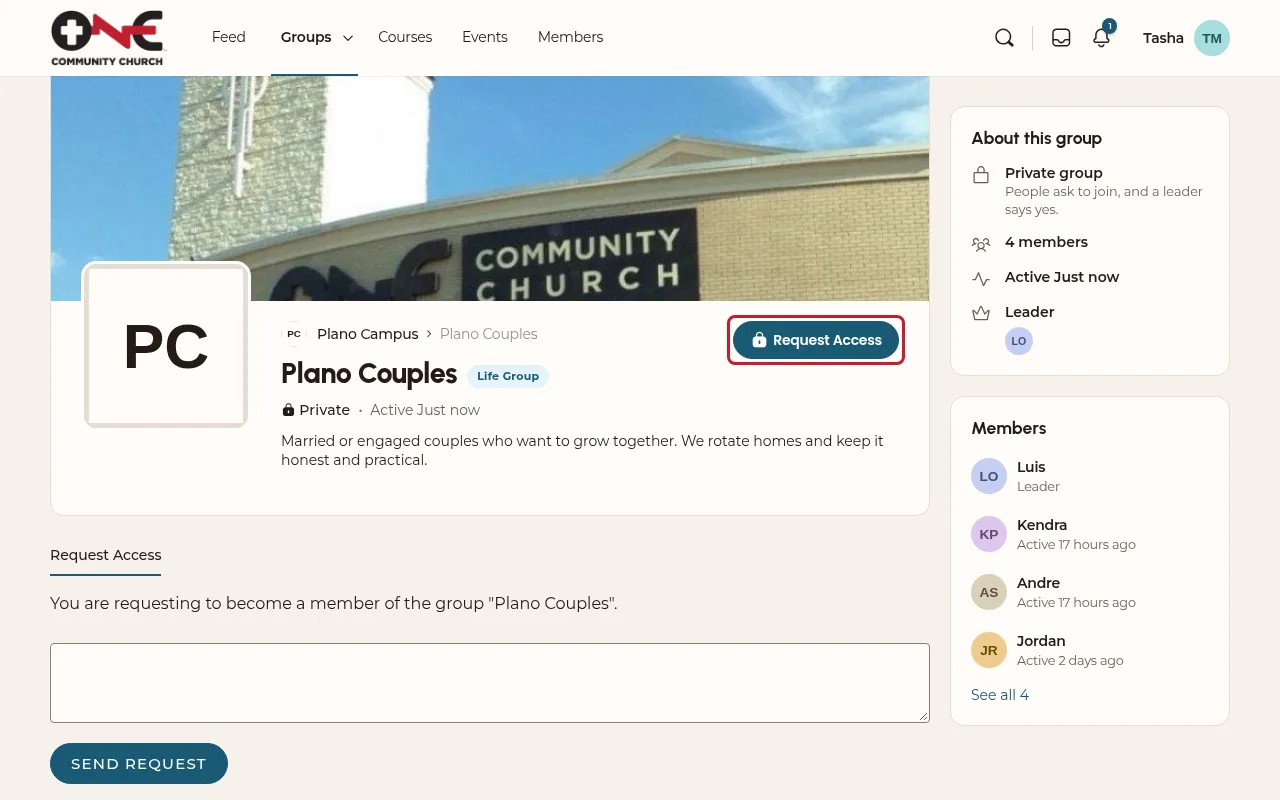
Open the group and press Request Access (or Join, for a group anyone can join). Most groups are private, so the leaders say yes first, usually within a few days. You’ll get a notification when they do, and the group shows up in your News Feed. If it isn’t the right group, your campus’s group team finds you another; nobody is told no. A group that’s full says Full for now: find another group.
At an event
-
Sign in at the door
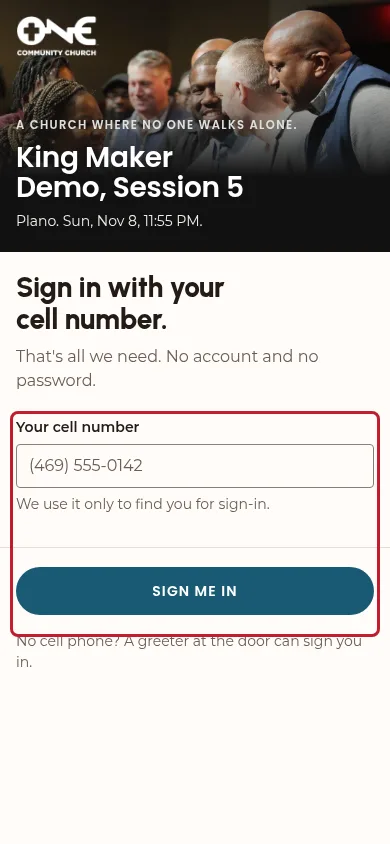
At an event, scan the sign at the door with your phone’s camera and type your cell number. If you’re signed in to the community on that phone, it’s one tap. More in Run an event.
Meet online
-
Join a group’s Google Meet
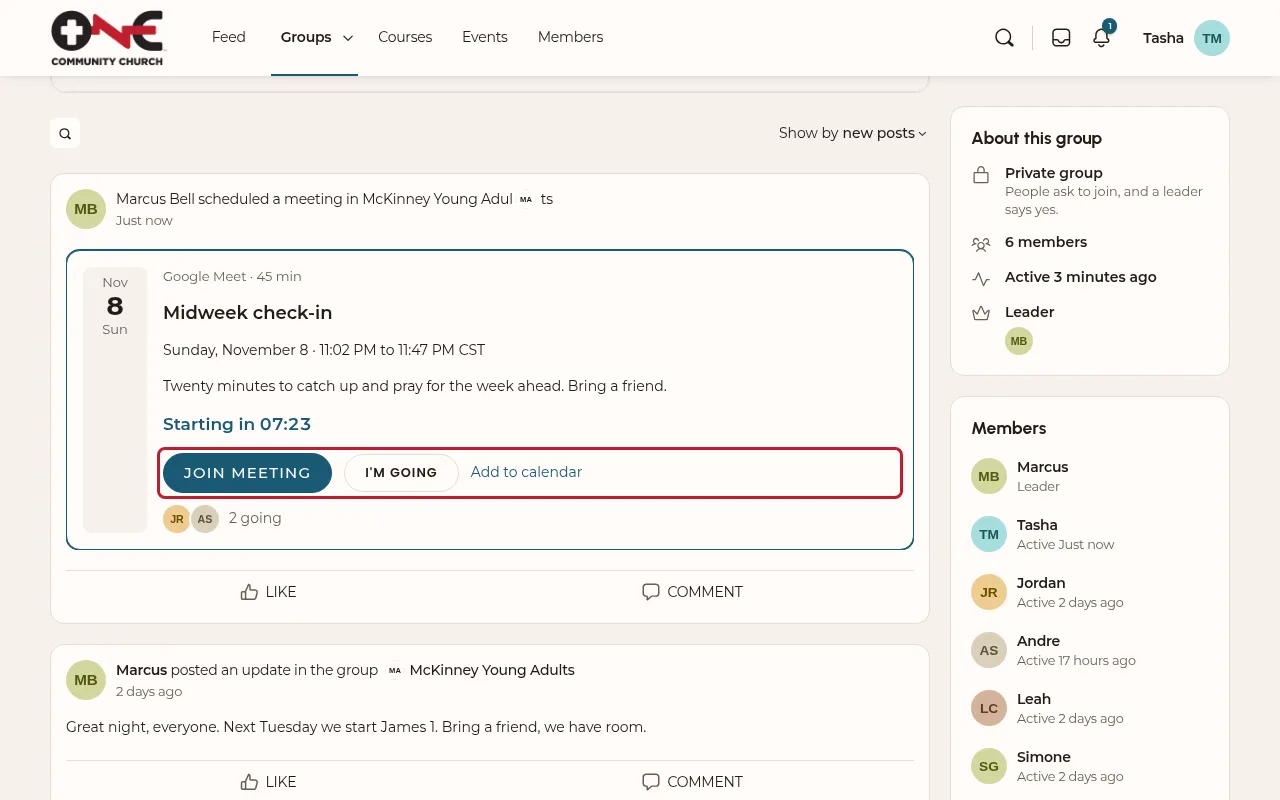
When your group’s leader schedules a meeting online, a card shows in the group’s Feed and in your News Feed. It counts down to the start, and Join meeting appears 10 minutes before. While it’s on, the card says Live with the time left.
Press I’m going so your leader knows to expect you; nobody is emailed. Add to calendar puts it on your Google, Apple or Outlook calendar. Only the group’s members see the meeting link.
Post and message
-
Share something
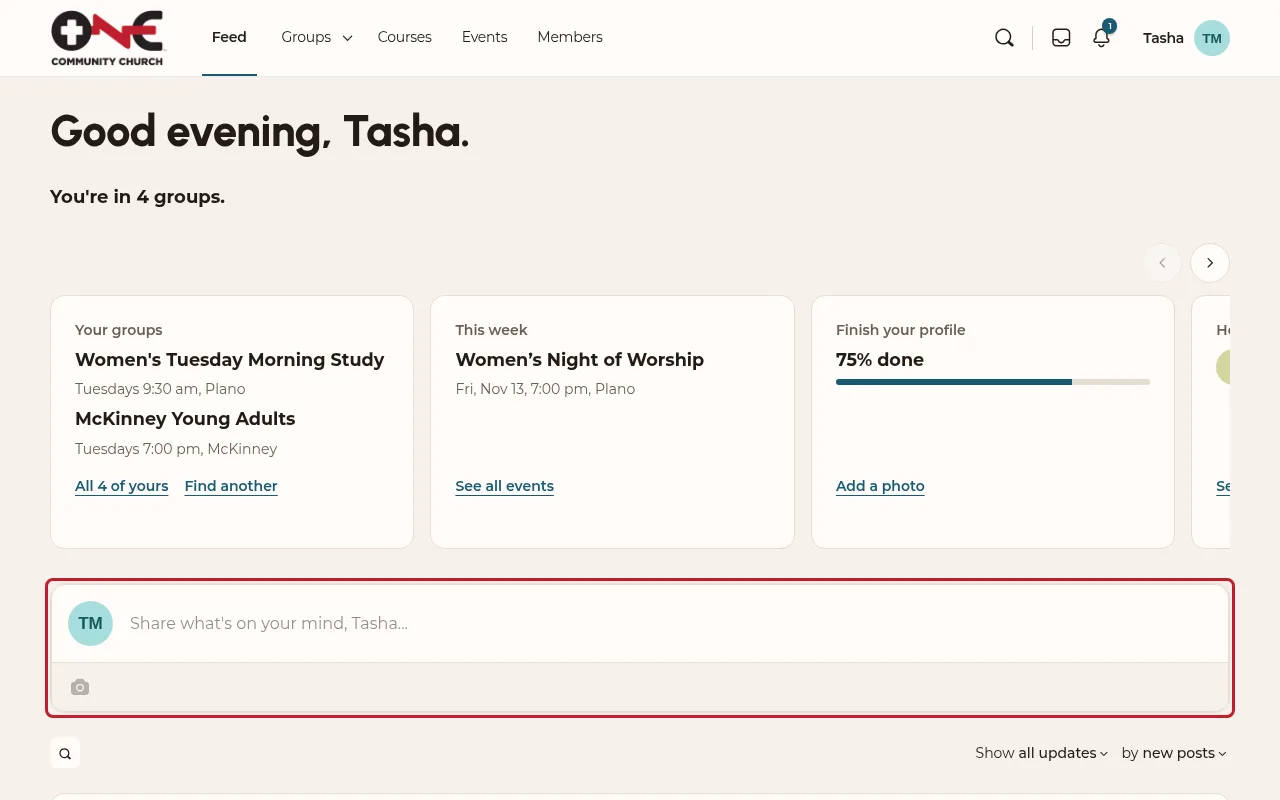
Write in Share what’s on your mind at the top of the News Feed, or in a group’s Feed to post just to that group. Add a photo with the camera button, then press Post.
-
Message someone
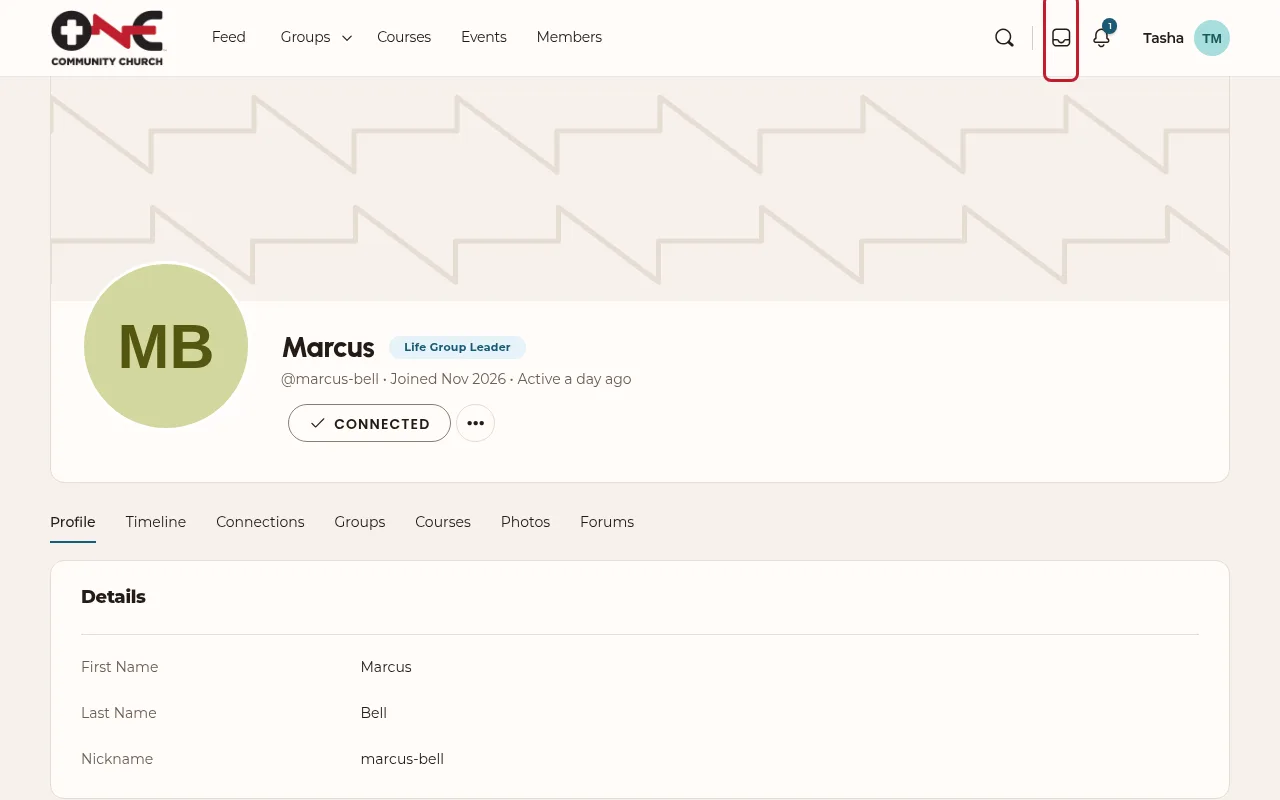
The envelope at the top opens your messages. To start one, open the person’s profile from Members or a group, and choose Message.
Take a course
-
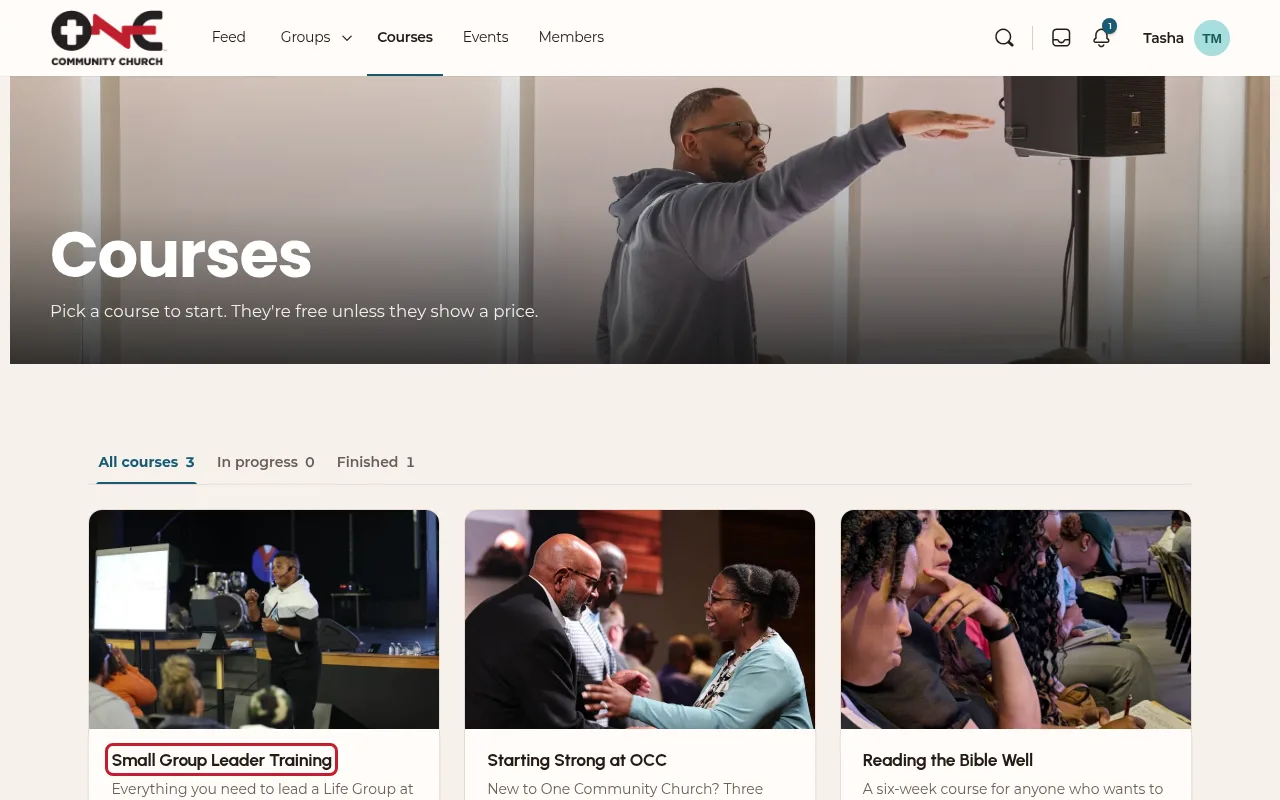
Choose a course
Open Courses in the left panel, or Training at the top to see which are free. Open a course to see its modules.
-
Work through the lessons
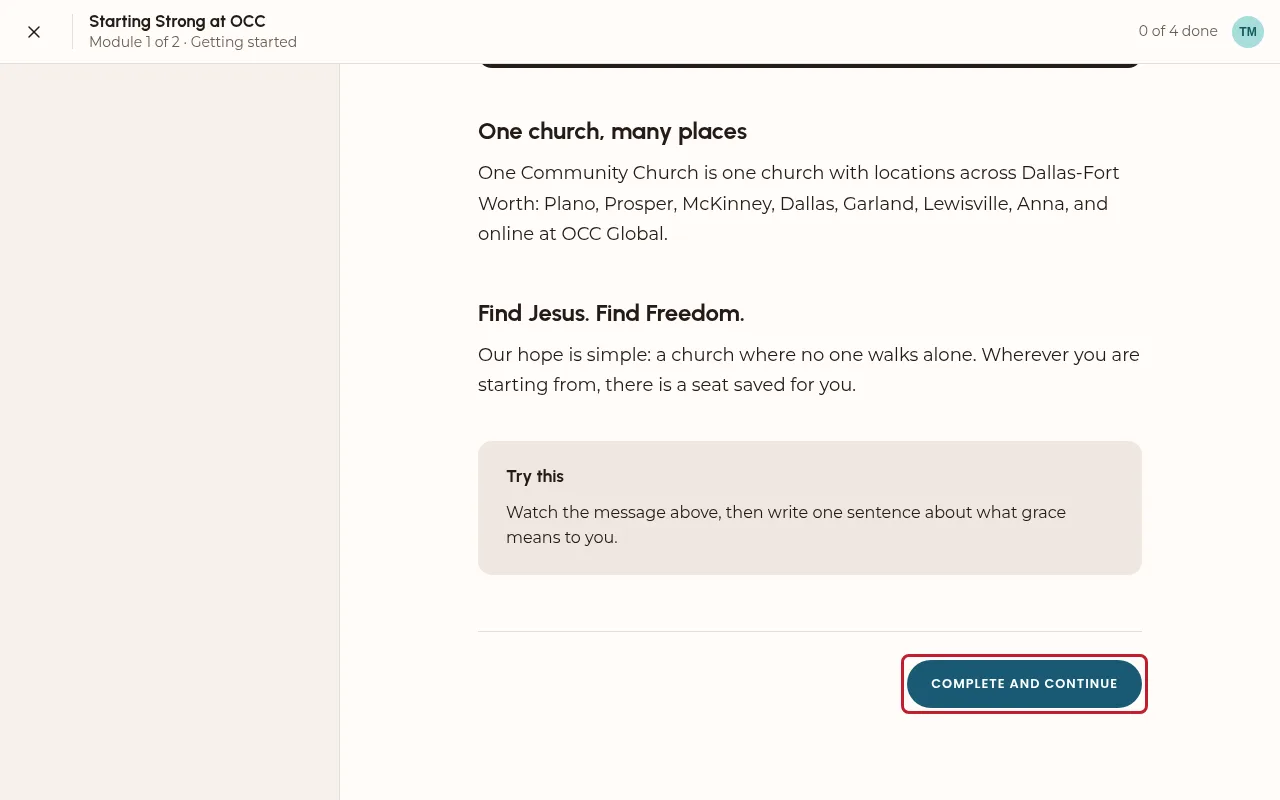
Each lesson has a short reading or video, a Scripture and a Try this step. Press Complete and Continue at the end of each one. Every few lessons a short check helps you remember; the final quiz needs 80%, and you can take it again.
-
Get your certificate
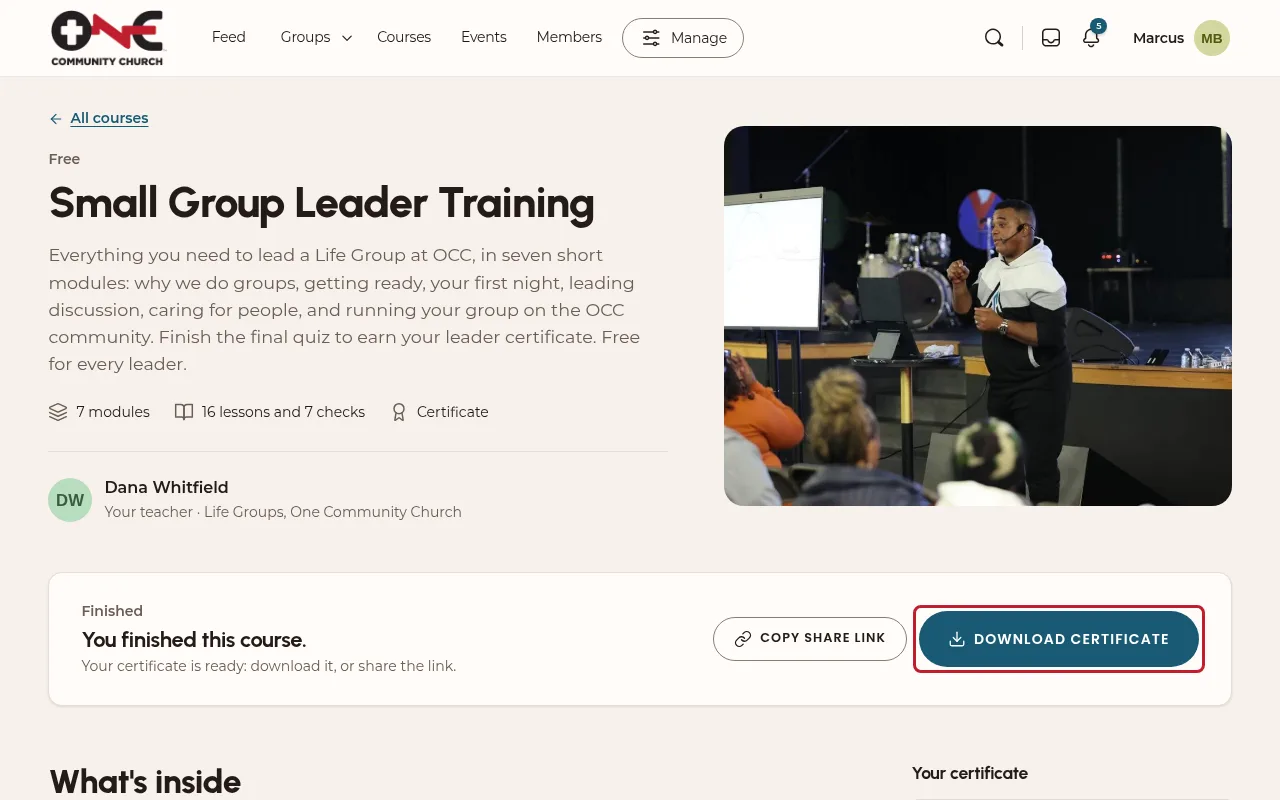
When you finish every lesson and pass the final quiz, Certificate appears in the course’s left panel. Open it to download it, or use the share link beside it.
On your phone
-
Use it in your phone’s browser
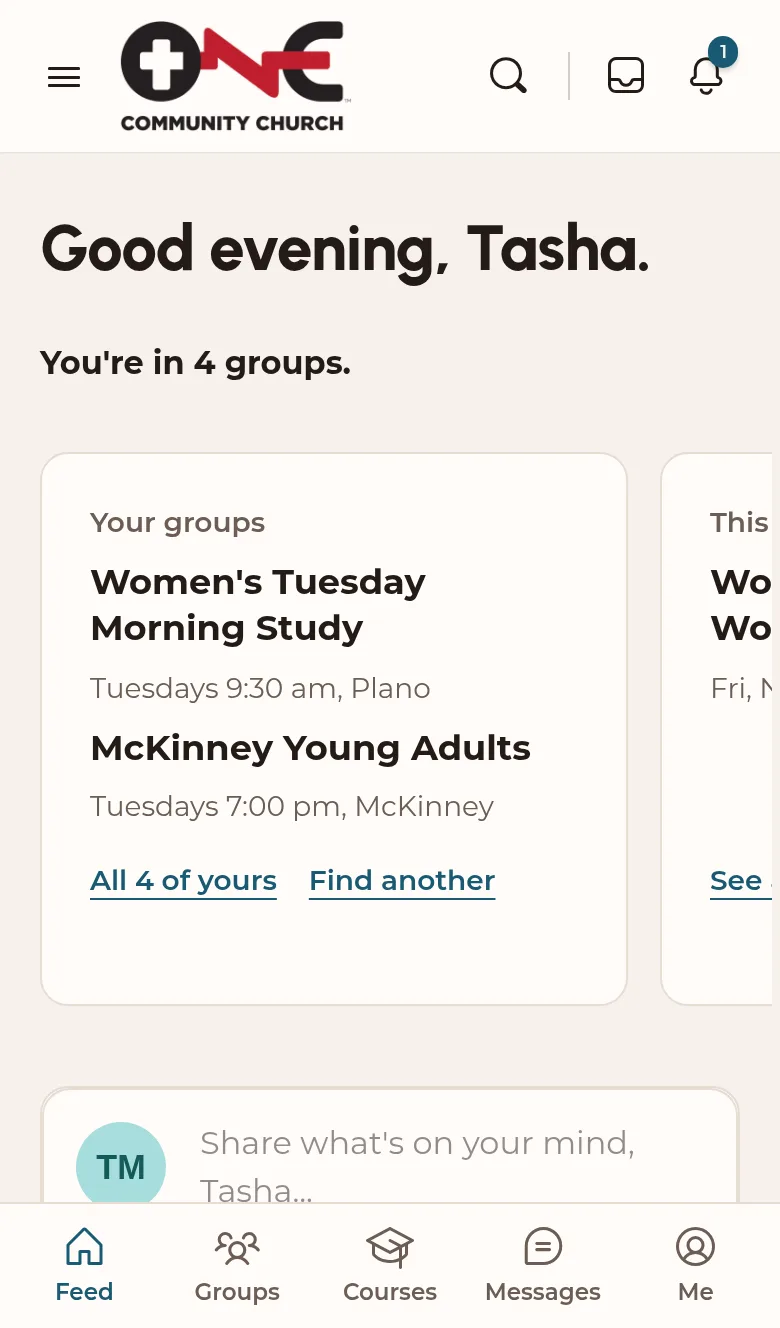
Open the link on your phone and sign in. Swipe the cards at the top of the News Feed. The bar at the bottom has Feed, Groups, Courses, Messages and Me, and the menu button at the top left has the rest. To keep it one tap away, choose Add to Home Screen from your browser’s share menu.